Automate emails in Trello based on due dates
Transform your due Trello cards from passive reminders into actionable emails with automation and the Email for Trello Power-Up.
Keeping up with deadlines is hard enough without also needing to remember to send the right email at the right time!
This is where Trello automation shines for teams like customer support, sales, finance, and more. By using date-based triggers to move cards and send automated email in Trello, your team can stay consistent, respond faster, and remove manual busy-work.
Plus, when you pair built-in Trello automation with the Email for Trello Power-Up, due dates are not just passive reminders – but start driving real communication.
In this guide, we take a look at practical ways to trigger emails from Trello based on custom dates, so that you can stay on top of your follow-ups, reminders, and updates.
💡 TIP Looking for different automation ideas? Check out our Trello automation library for more inspiration for email automation and everyday organization, based on triggers like Custom Fields, checklist items, card name, and more.
How date-based email automation works
Let’s take a look at a quick overview of how to automatically send emails by triggering card movements based on custom dates in Trello.
At a high-level, here’s how the workflow looks:
A due date is added to a Trello card
A Trello automation rule is set up to move that card on or before the date and time arrives
An email is sent automatically, using a combination of Email for Trello’s @reply keyword and Saved Reply features
As a result, the right email goes out at exactly the right time, without anyone in your team needing to check the board, or manually hit ‘send’.
Automating emails based on dates in Trello
Here are some practical examples of the kinds of emails you can automate with due dates in Trello, and how to set them up.
Check in after resolving a support ticket
Support teams often resolve an issue, but forget to follow up with the customer to check if everything is working as expected. A simple date-based automation can fix that – and also give your help desk team an additional touch-point opportunity to reach out for customer feedback.
1. Create a Saved Reply email template
Before you create your rules, make sure you have a Saved Reply template set up to send as part of your automation! For example:
Hi {%contactFirstname || “there”%},
Checking in to see that your ticket number {%referenceNumber%} was resolved to your satisfaction. If so, please rate our service at [insert link]. Your feedback is greatly appreciated!
Should you need anything else, please reach out and I’ll be happy to help.
Kind regards,{%userFirstname%}
💡 TIP You can include variables and Custom Fields (the parts in curly brackets) to personalize your automated email and address your customer by name. For more detail, check out our guide on how to use variables in your Saved Replies.
Now you’re ready to set up your date-based automation!
2. Create a Trello automation rule to set how many days to wait
For example, when a card is added to the list ‘Resolved’, set the due date in two working days.
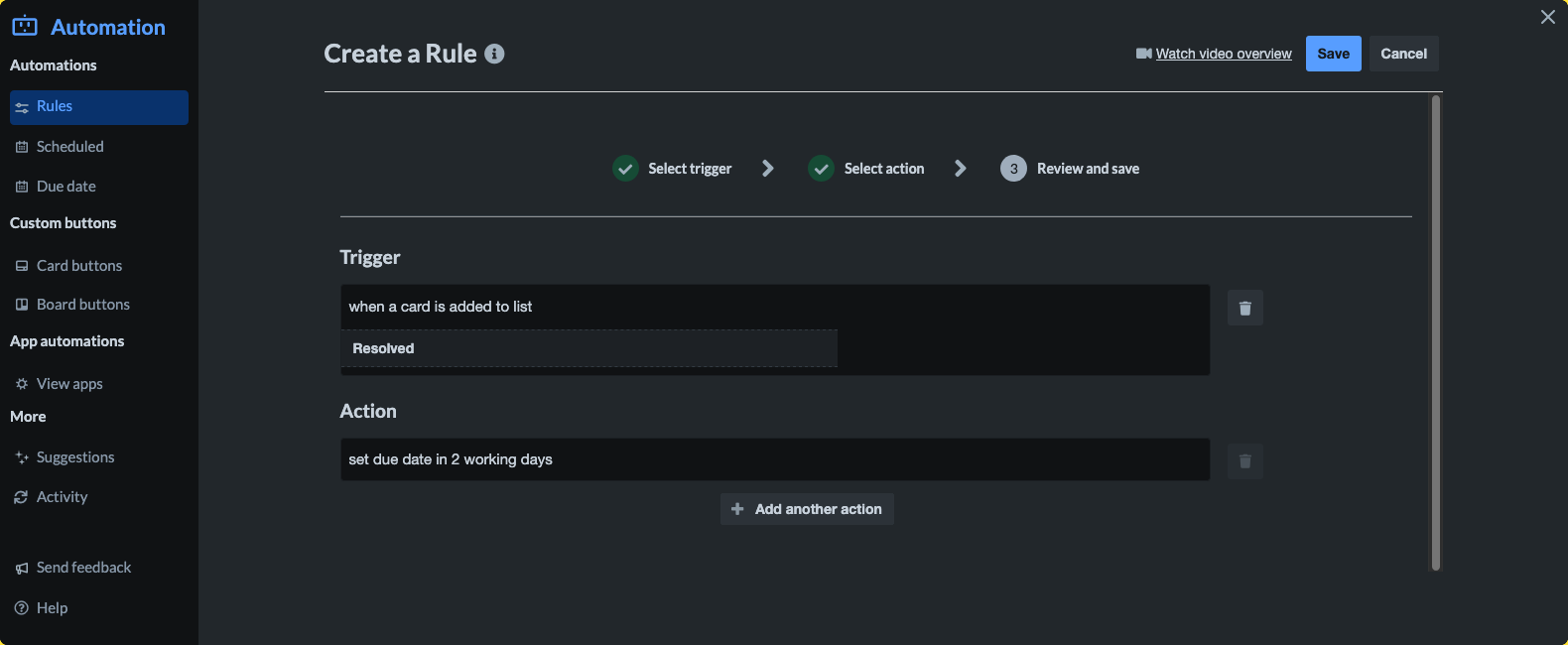
When a card is added to list ‘Resolved’, set due date in 2 working days
3. Create a due date automation to send your email
For example, the moment a card in the list ‘Resolved’ is due, move the card to the list ‘Check In’, and post comment ‘@reply ##CheckIn’.
Sending the email relies on two Email for Trello features:
@reply is a special keyword that sends the content of a Trello comment as an email reply to all the contacts on the existing thread.
The ##CheckIn part dynamically inserts the content of the Saved Reply email template called ‘CheckIn’ when the automation runs.
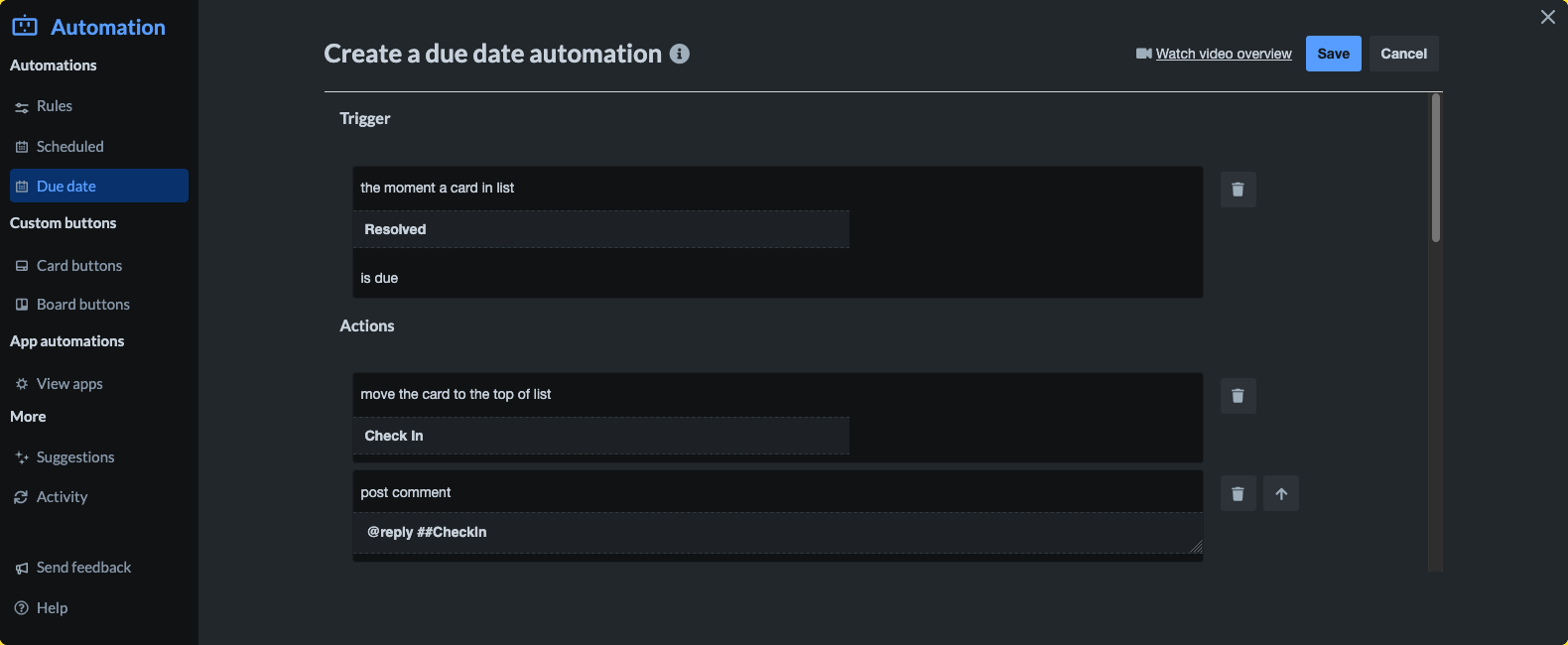
The moment a card in list ‘Resolved’ is due, move the card to the top of list ‘Check In’ and post comment ‘@reply ##CheckIn’
Here’s what your customer sees when your automation runs!
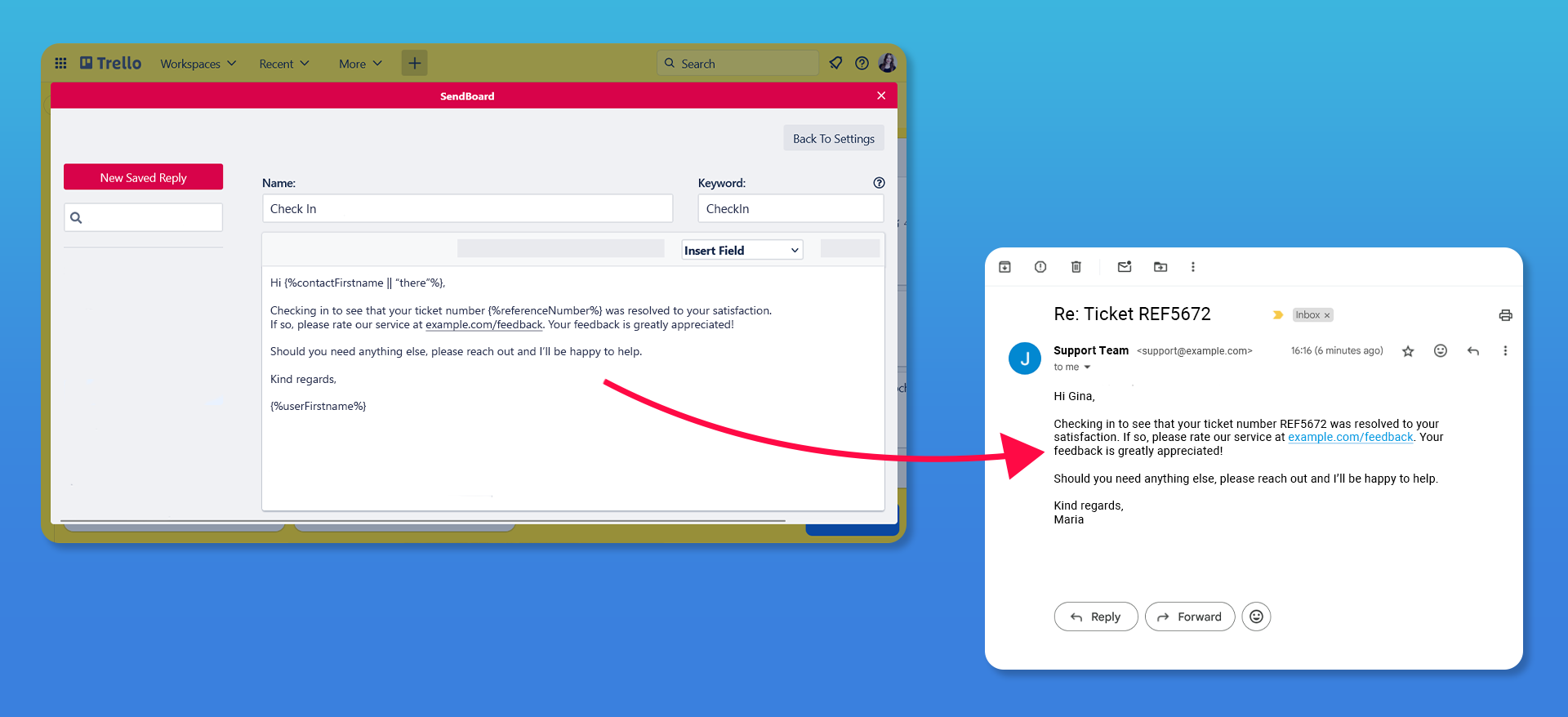
The variables in your Saved Reply are automatically populated with the relevant values, and your customer automatically receives a personalized check in email from your help desk.
💡 TIP Find out more about how to set up an email help desk in Trello to stay organized, respond faster, and keep customers happy.
Follow up after a sales demo or call
Sales reps know that follow-ups matter – but timing is everything so your leads don’t go cold!
After a demo, automatically add a date to your deal card and move it to a follow-up list. When that date comes around, Trello automation can send out an email on behalf of the rep using Email for Trello’s @reply feature. The email template can reference the demo, include next steps, and keep the conversation warm.
💡 TIP Looking to streamline your team’s sales process? We show you how to build your inbound sales workflow in Trello from scratch – no complicated CRM software required.
Send invoice reminders
Chasing invoices doesn’t have to be awkward – let automation take care of payment reminders, so you don’t have to!
For example, if your finance team keeps a list of overdue invoices, you can add a due date automation to send an email after 30 days to all outstanding cards in the list with notice of late payment fees.
These kinds of automated reminders can help you improve cash flow while keeping communication clear, consistent, and polite.
💡 TIP We know that asking for payment can feel uncomfortable! Learn how to write friendly and tactful payment request emails with our invoice email templates.
Turn Trello due dates into actionable emails
By combining date-based automation with the Email for Trello Power-Up, every deadline becomes an opportunity to communicate reliably with your clients and customers.
Whether you’re running a help desk, closing sales deals, or managing invoices, email automation can help your team stay responsive without extra effort. Set it up once – and let Trello handle the follow through!