How to use a Trello card button to trigger a Zapier webhook
Learn how to set up a Trello card button to trigger custom events in Zapier via webhooks for a more sophisticated and integrated email workflow.
Trello automation is a powerful in-app tool that allows you to streamline your team’s processes, and get more done. Combined with HTTP requests, you can extend these automations to interact with a wide range of external applications for more advanced multi-channel workflows.
In this article, we explore:
How HTTP requests work in Trello
How to create an HTTP request from a Trello button using Zapier webhooks
How to use webhooks to achieve more with your email workflow in Trello
Let’s dive in!
Understanding Trello HTTP requests
The concept of an HTTP request is a web URL that other systems can hit in order to send or retrieve information. Trello automation supports three types of HTTP request:
GET to fetch data,
POST to create new data, and
PUT to update existing data.
Find out more about issuing HTTP requests with Trello automation in the Atlassian help center.
What is a Zapier webhook?
Webhooks by Zapier uses HTTP requests to send or receive payloads of data between apps. This is a powerful way to connect different systems – and then use the data from those systems wherever you need it.
Read more about how to get started with webhooks in Zapier.
Trello automation + Zapier webhooks = more powerful workflows
Creating Trello automations with HTTP requests via Zapier webhooks makes it possible to:
Speak to different platforms within your team’s eco-system, without leaving Trello
Get specific information from your Trello cards into your other apps (and vice versa)
For teams working with the Email for Trello Power-Up, this is especially useful because it means that all email communication is contained within Trello, and can also be referenced elsewhere in your team’s workflow if needed.
How to set up a multi-channel automation with Trello and Zapier webhooks
To demonstrate, let’s take a closer look at an example for a multi-channel onboarding automation that needs to be triggered after a customer interaction with your sales team in Trello.
We will set up a ‘Start onboarding’ Trello card button to:
Send Custom Field information from the Trello card to Zapier using webhooks
Use that information to create and send an e-sign link using Docusign
Post an
@replycomment to the same card, triggering a Saved Reply email to guide your customer through the onboarding process
1. Create a card button to post Trello data to Zapier
In Zapier, set up a Catch Hook event using Webhooks by Zapier. Under the ‘Test’ tab, copy the given URL.
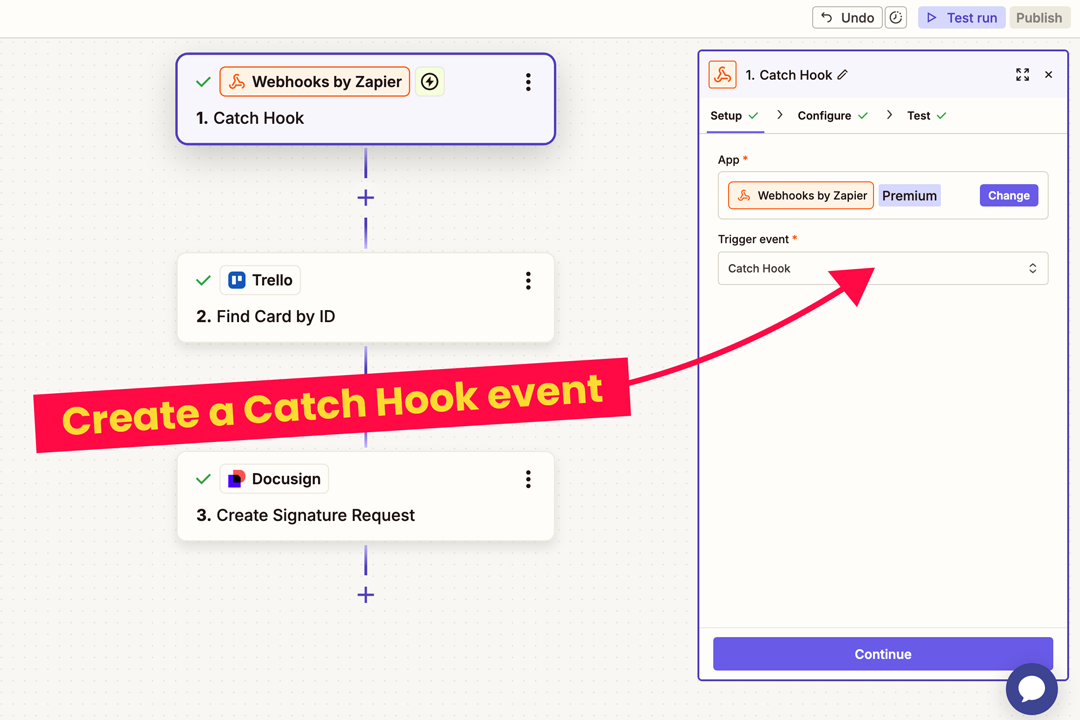
Configure a Catch Hook event in Zapier and copy the given URL from under the ‘Test’ tab
On your Trello board, navigate to Automation > Buttons > Card Buttons. When we click our button, we want to be able to send data from the Trello card into Zapier.
To do so, choose the ‘Content’ tab under ‘Actions’ and scroll down to select the ‘get URL’ option. Change ‘get’ to ‘post to’, and paste in the URL that you copied from the ‘Test’ tab in Zapier.
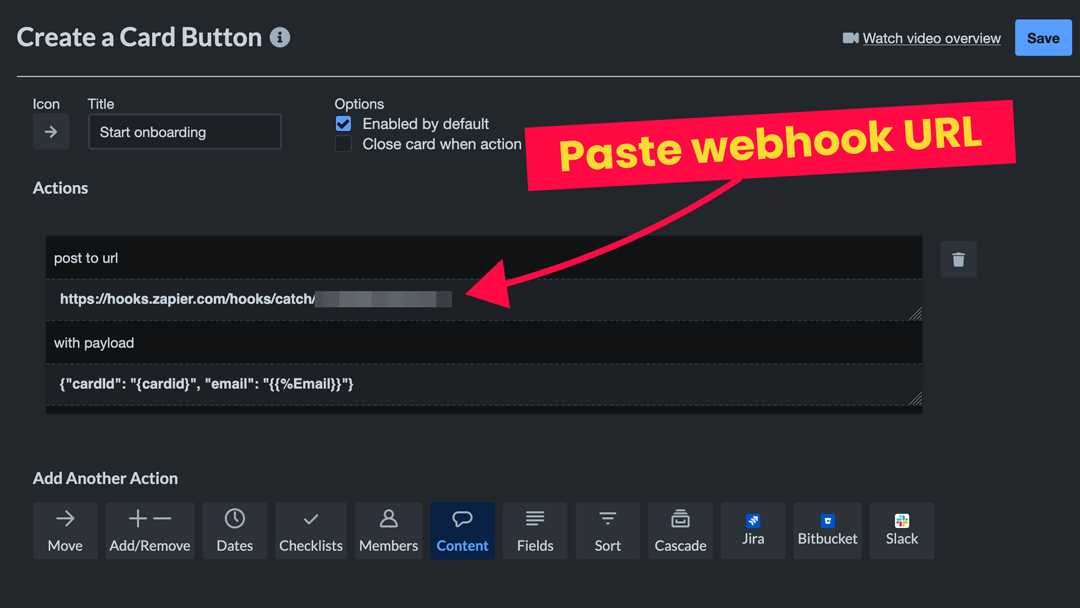
Select the Trello ‘post to URL’ action and paste the webhook URL from Zapier into the corresponding field
In the payload field, enter the data that you want to push into Zapier via your webhook (in JSON). For example, {"cardId":"{cardid}","email":"{{%Email}}"} will post the email address of the customer associated with the current card. It works by pulling the unique Trello card identifier as defined by the variable {cardid} and the Custom Field {{%Email}}.
💡 TIP Head over to the Atlassian help center to read more about using Trello-supported variables in your automations as well as formatting tips for referencing Trello Custom Fields.
Save your button automation. Clicking this button on any given Trello card will now send the HTTP request to Zapier, including your payload of data (the Trello card ID and the Custom Field called ‘Email’).
2. Create a new signature request in Docusign
Next, we want to be able to dynamically create a link for our customer to sign our standard contract agreement based on a pre-existing template in Docusign.
Add a new Trello step to your Zap using ‘Find Card by ID’. This helps Zapier find the card on which your automation ran.
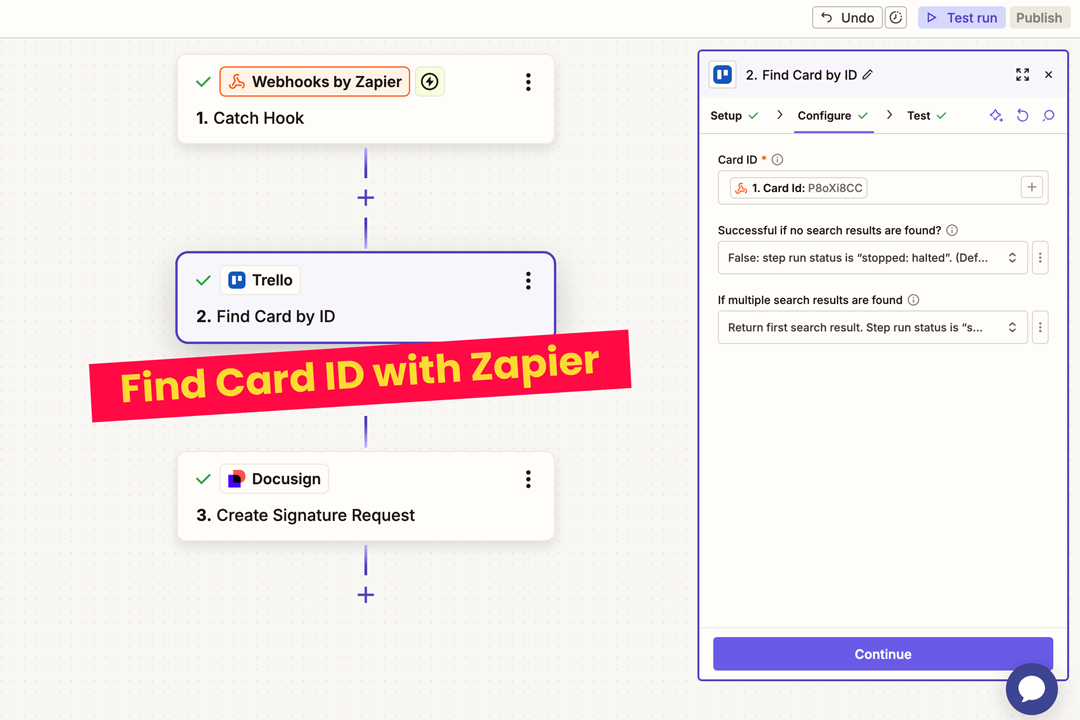
Use Zapier webhooks to pull the ID of the Trello card where your automation ran
Now add another step using Zapier’s Docusign integration and select the action event ‘Create Signature Request’. Under your configuration settings, select the Trello Custom Field ‘Email’ that you pulled using your webhook as the recipient.
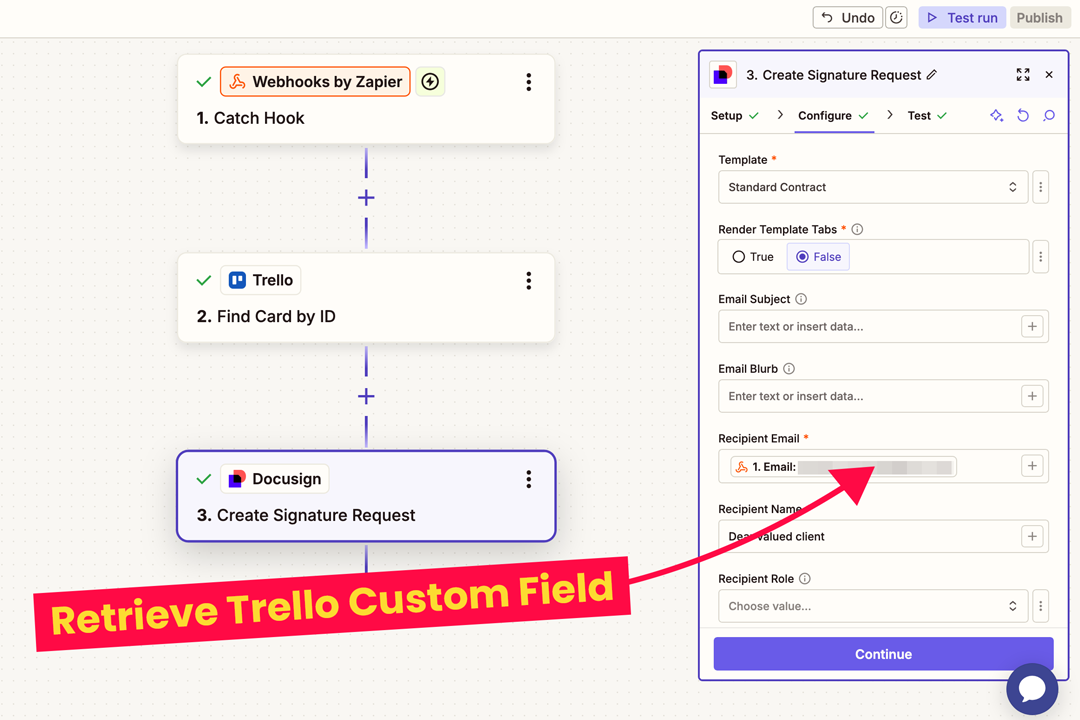
Under the configuration settings for your Docusign signature request, set the recipient email to the value pulled from your Trello Custom Field by your Zapier webhook
💡 TIP You can customize your signature request as much as you need by sending additional Custom Field data (like customer name or sales agreement reference number) from Trello to Zapier. Simply add your required fields to your line of JSON in your Trello card button action.
3. Send your client a template onboarding email
When clicked, your ‘Start onboarding’ button will now send out a signature request via Docusign to the customer email address contained within the ‘Email’ Custom Field on the associated Trello card.
However, you can take things further with a third step to simultaneously and automatically send an email from Trello telling the client to look out for an email from Docusign with their contract, and to let you know if they have any questions.
This helps you keep the email thread pertaining to the whole lifecycle of this client on the same Trello card, so that your team can see when the automation has run, continue the conversation, and reference the history of the thread at any time.
To add this to your onboarding button, choose ‘post comment’ and type (for example) @reply ##StartOnboarding in the comment field. This action uses the Email for Trello Power-Up to reply to your client with a template email. Here’s how it works:
The
@replykeyword triggers an email reply to the existing thread on the Trello cardThe
##StartOnboardingvariable references a Saved Reply, and will be automatically replaced with the content of the template when the email is sent
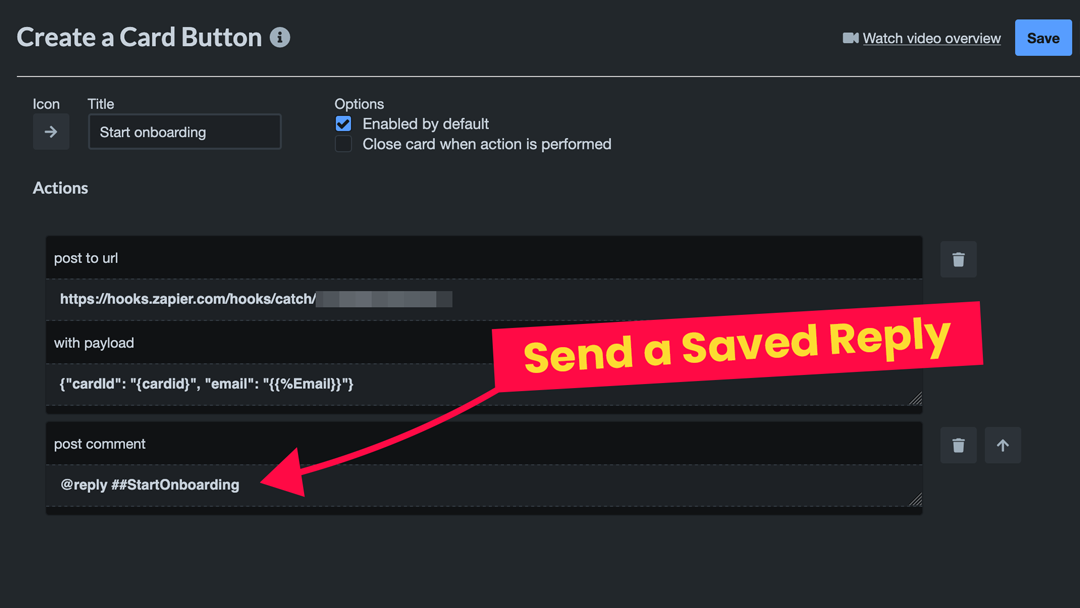
Select the Trello ‘post comment’ action and use the Email for Trello @reply keyword to set up an automated email to be sent when the button is clicked
💡 TIP Find out more about about Saved Replies in Email for Trello, and how to use the @reply keyword to automate emails using the Trello comment API.
You can stack these steps with further Zapier-based automations to connect with your team’s other tools. There are many possibilities for integration!
For example, once your client has signed the contract agreement, you could add automations to:
Update a Google Sheet for ‘Active Customers’ as soon as your client signs
Add new client sign-ons to your marketing database in Mailchimp
Taking webhooks further with internal tools
Webhooks are also useful for teams that run internal software (like a custom admin platform) that doesn’t connect to Zapier via an existing integration – but that they either want to update after a customer interaction, or that they want to get information out of to include in an email.
In these instances, a similiar set up using Trello buttons and HTTP requests via Zapier webhooks can create powerful custom integrations. For example:
Companies with an internal AI (like ChatGPT, but not exposed, and trained on more sensitive company data) could generate email responses using a ‘Reply with AI’ button to call their API and return a suggested response.
In a deal renewal workflow, a Trello card button could be configured to call an internal analytics API to get an overview of usage data. This can then be posted back to the card and included in a renewal email as an indicator of the value the customer is receiving.
For teams running a custom order management backend (rather than an off-the-shelf eCommerce service), a Trello button could be combined with a Zapier webhook to approve a refund or apply a discount.
Extend your email workflow with Zapier webhooks
HTTP requests (also known as webhooks in Zapier) are a powerful way for your team to connect their Trello board with external apps in their workflow.
By combining a Trello button with a Zapier webhook, you can create complex multi-channel automations that trigger events in your team’s other work tools. Plus, the Email for Trello Power-Up makes it possible to send emails right from your board as part of those automations – without leaving Trello.