
Discover even more powerful Trello automations for your workflow with complex pattern matching using regex and wildcards.
Built-in Trello automation is a fantastic no-code tool for teams looking to save time and maximize productivity. But have you ever found yourself stumped when trying to do things depending on some text in the name or the description of a card?
This is where pattern matching and wildcards can help! By defining a pattern of text, even where some character combinations might be unknown, it’s possible to create Trello automations that trigger whenever a match is found.
It’s little-known that Trello even supports regex, which is a game-changer for achieving more complex automations.
💡 NOTE A regular expression (shortened as regex) is a sequence of characters that specifies how to match a pattern in any given text.
In this article, we explore some examples of how to use Trello’s hidden automation features for complex pattern matching using regex, wildcards, or a combination of the two:
Simulating an ‘or’ condition for multiple trigger conditions with regex
Performing an action where the trigger text is unknown with wildcards
Automatically sending replies based on text inside an email with Email for Trello

How to use complex pattern matching in Trello automations
Create an ‘or’ condition with regex
Support for regex is one of Trello’s best-kept secrets! Although there is Atlassian documentation on pattern matching and wildcards, information on how to use regex in Trello automation is very limited.
One of the most powerful uses of regex for your Trello automations is the ability to specify multiple trigger conditions.
For example, let’s say you run a bookings and reservations board in Trello for a number of short-term let properties. To save time, you want to find all cards containing ‘New York’, ‘NYC’ or ‘NY’ in the name, and automatically move them to the ‘New York apartment’ list.
With regular Trello automation, it is not possible to specify multiple keywords in a single rule. You need to write a separate rule per keyword if you want to achieve the equivalent of an ‘or’ condition. This may not seem like a big deal for three keywords, but if you have a list running into the tens, hundreds, or more, you’ll probably want an easier way!
Here’s how to use regex to trigger a Trello automation for ‘or’ on more than one keyword, without creating a new rule per keyword:
Trigger: When the name of a card contains ‘regex:/.(New York|NYC|NY)./’
Action: Move the card to the top of list ‘🏙 New York apartment’
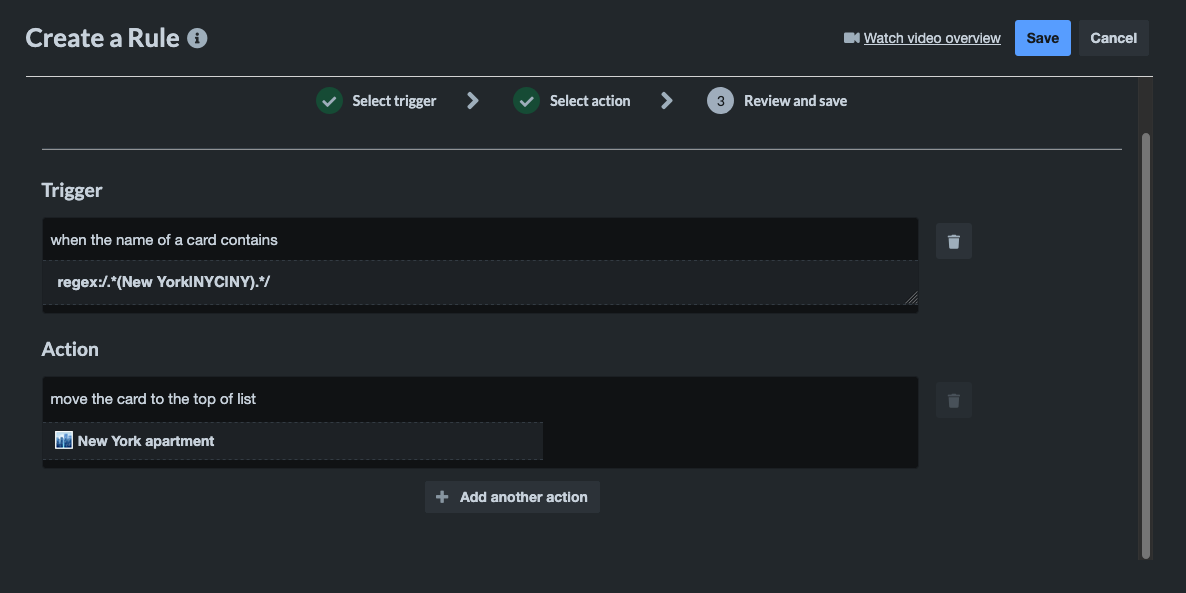
When the name of a card contains ‘regex:/.*(New York|NYC|NY).*/’, move the card to the top of list ‘New York apartment’
💡 TIP You can use a tool like Regex101 to help put together a regular expression that meets your exact needs.
Find out more about stacking multiple triggers in a single Trello automation rule with this handy video from Brittany Joiner. It’s a comprehensive step-by-step that shows you how to use regex to add the relevant checklist to a card when it moves into any list on your Trello board.
Use wildcards to target unknown text strings
What happens if you want to create a Trello automation based on an unknown text trigger?
This is where wildcards can help you to define a variable, so that your automated action can target any text that conforms to your specifications.
For example, let’s say your team uses Trello for invoice management, and you want your financial controller to receive a notification every time a new invoice is added anywhere in your workflow. Here’s how it could look:
Trigger: When a card with a name starting with ‘INV{* }’ is added to the board
Action: Post comment ‘@maria New invoice #{wildcard1} for approval’
The trigger assumes that all invoice cards start with ‘INV’ followed by a string of numbers. The wildcard {* } will match text until a blank space or end of the text. To use the wildcard in the action, the variable {wildcard1} is included in the comment, which will be populated with the relevant value when the automation is run.
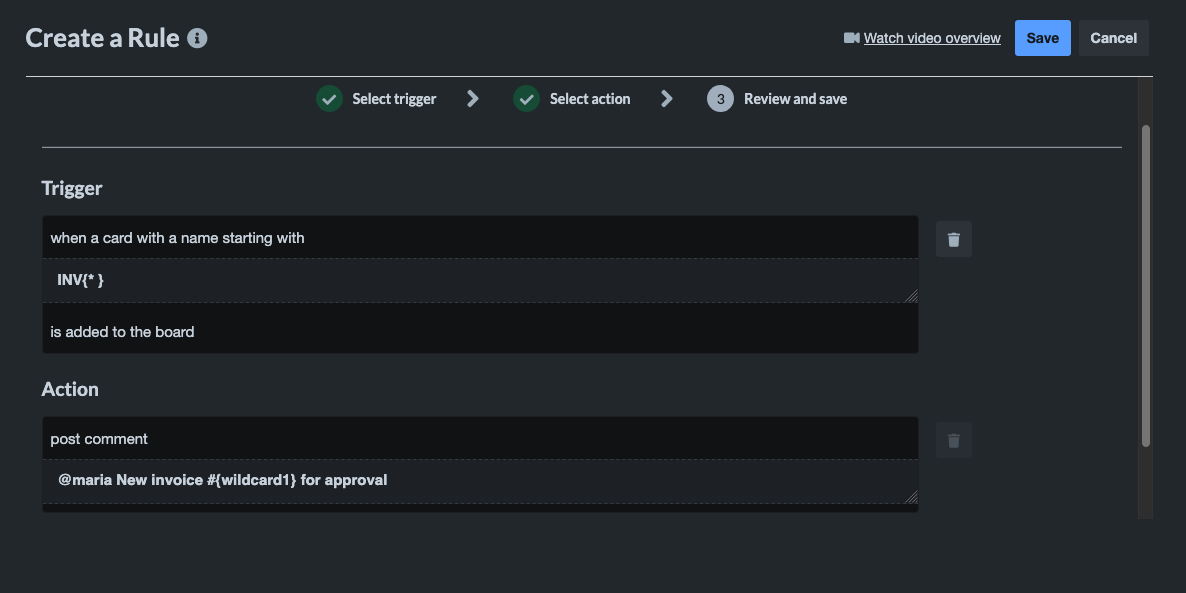
When a card with a name starting with ‘INV{* }’ is added to the board, post comment ‘@maria New invoice #{wildcard1} for approval’
Create smart replies based on the text of an email
If you’re using the Email for Trello Power-Up to send and receive emails directly from your Trello board, you can combine pattern matching and regex to create powerful automated replies based on the content of your emails!
For example, many help and support teams commonly receive emails from users who can’t log in to their account. It could save hundreds of hours if your board could automatically respond to any email that arrives containing the phrase ‘forgot my password’ with a link to your help center for troubleshooting tips.
Here’s how it works:
Pattern matching scans incoming emails for specific text (i.e. ‘forgot my password’)
Trello automation fires off a Saved Reply email template when it finds a match
As a bonus, regex can match more complex conditions, to account for differences in how customers might phrase their email (i.e. match for ‘forgot my password’ OR ‘forgot my login’)
Follow our step-by-step to create smart email auto-replies in Trello by searching for specific text and responding with a pre-defined template if there is a match.
Discover powerful hidden Trello automations
Save team time with hidden Butler functionality! Get the most out of automation for your workflow with Trello-supported pattern matching using wildcards and regex to trigger automations when cards match specific text.