Build a LinkedIn People Directory in Trello (Step-by-Step)
LinkedIn is great for making connections, but it's not where most people actually manage those relationships. Trello + Email for Trello gives you a better way to organize, reach out to, and follow up with your professional network.
LinkedIn is where professional relationships start, but it's rarely where the real work of maintaining them happens. Your connections list grows with every conference, sales call, and introduction, and before long you've got hundreds (or thousands!) of contacts sitting in a directory you never actually use.
The trick is getting those connections out of LinkedIn and into a system where you can act on them. In this article, we show you:
How to export your LinkedIn contacts
How to clean them up for import into Email for Trello’s contact management tool
How import them into Trello as a working people directory
Why LinkedIn isn't enough on its own
Your LinkedIn connections are buried in a long, unsorted list. There's no way to categorize people by project, priority, or relationship stage. When you need to follow up with someone, you're stuck choosing between a LinkedIn message (which often goes unread) or switching to your email (which isn’t linked to any of your contacts).
For anyone already using Trello to manage their work, it makes sense to bring your professional contacts into the same place where your tasks, projects, and communication live. That way, when you need to reach out to a connection, you're already in the right tool.
Export your LinkedIn connections
LinkedIn lets you download your entire connections list as a CSV file. Here's how:
Go to Settings & Privacy in LinkedIn, then navigate to Data Privacy
Under "Get a copy of your data," select Connections and request your download
LinkedIn will email you a link when the file is ready (usually within a few minutes)
The exported CSV includes each contact's first name, last name, email address (if they've made it visible), company, position, and the date you connected. This is your raw material for building a people directory in Trello.
Clean up your data before importing
The LinkedIn export will contain every connection you've ever made, including people you don't remember meeting. Before importing to Trello, take a few minutes to clean up the spreadsheet.
Open the CSV in Excel or Google Sheets and remove any connections you don't need. Sort by company or position to group people by relevance to your current work. Delete columns you won't use (like "Connected On" or URL fields) and make sure the columns that remain match the Email for Trello import format: FirstName, LastName, EmailAddress, MobileNumber, TelephoneNumber, Organisation (make sure your columns are in this order).

💡 TIP Email for Trello provides a downloadable CSV template for contact imports. Use it to make sure your column headers are in the right format before uploading.
Set up a networking board in Trello
Create a dedicated Trello board for managing your LinkedIn connections. Think of it as your personal CRM. Set up lists that reflect the stages of your professional relationships. For example:
New Connections for recently imported contacts you haven't engaged with yet
Active Conversations for people you're currently in touch with
Follow Up for contacts you need to circle back to
Warm Network for established relationships you want to maintain
Opportunities for contacts tied to a specific deal, project, or collaboration
You can adjust these lists to fit your workflow. The point is to give your connections a home where they're visible and actionable, rather than buried in a static LinkedIn directory.
Import your contacts into Email for Trello
Once your CSV is cleaned up and formatted, import it into Email for Trello using the contact management dashboard. Open the SendBoard menu on your Trello board, navigate to the Contacts tab, and use the import function to upload your CSV.

Import contacts via .csv upload
All imported contacts will appear in your Email for Trello contact database, searchable by name, email, or organization. From there, you can assign any contact to a Trello card by clicking "Assign contact" from the button on the card.
💡 TIP Group your contacts by company using Email for Trello's organization feature. When you add an email domain to an organization, new contacts from that domain are automatically matched. This is a great way to keep track of multiple contacts at the same company.

Group your contacts automatically based on their email address
Use notes to add context
A name and email address only tells you so much. The real value of a people directory comes from the context you add over time. Email for Trello lets you attach custom notes to each contact, which is perfect for recording details that LinkedIn doesn't capture: what you talked about at a conference, what project they're involved in, or when you last spoke.
Reach out directly from your Trello cards
With your LinkedIn connections imported and organized, you can start using your Trello board as an active networking tool. Assign a contact to a card, compose an email from the card, and keep the full conversation history in one place. Your team can see every interaction, and no follow-up slips through the cracks.
This approach works especially well for sales teams managing pipelines, agencies tracking client relationships, or anyone who networks regularly and wants to turn connections into conversations. As one SendBoard user put it:
"It has allowed me to connect and network quickly without overwhelming my Outlook inbox or my LinkedIn messages... This Power-Up has been a game changer for me."
💡 TIP Use Saved Replies (Pro plan) to create reusable networking email templates. For example, a "re-connect" template with variables like {%contactFirstname%} lets you personalize outreach at scale without rewriting every message.

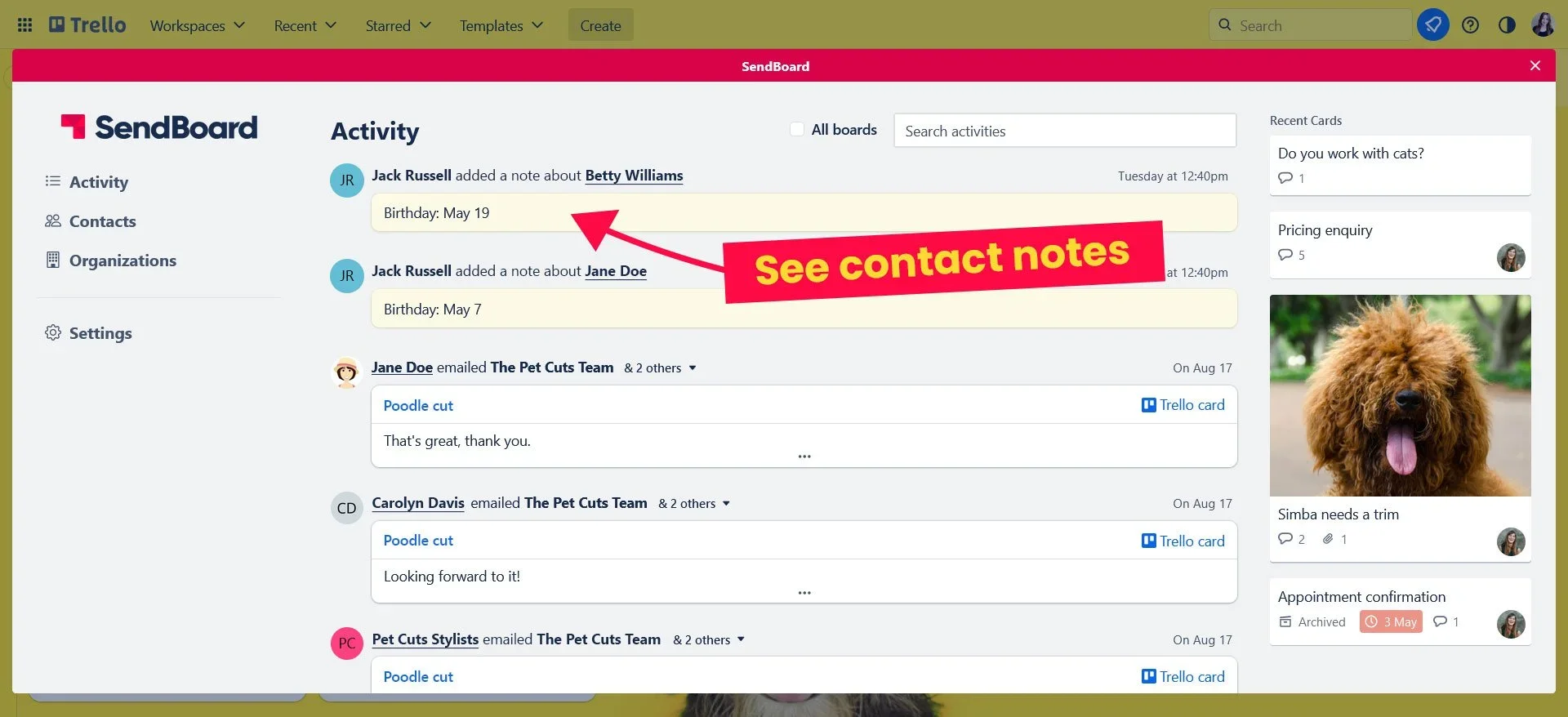
Use the activity view to see recent cards, emails and notes on your current board, or across all your mailboxes in Trello
Keep your directory alive with the activity feed
Your LinkedIn people directory is full of potential! Email for Trello's activity feed shows all email interactions across your boards, so you can quickly see who you've been in touch with recently and who has gone quiet.
Use this to schedule follow-ups, move cards between lists as relationships progress, and keep your networking board from going stale. Combine this with Trello labels (for tagging contacts by industry, event, or priority) and due dates (for scheduling check-ins), and you've built a lightweight personal CRM that lives right where your work happens.
Getting those connections into Trello, where you can organize, reach out, and follow up, turns a static list into a working part of your daily workflow.