Lightweight ways to customise Trello
Seven simple ways to customize Trello, so your boards stay clear, fast, and easy to run.
It’s easy to see how Trello has remained one of Atlassian’s best loved productivity tools: you can open a board and get moving fast, it’s not fussy, and the early learning curve is hardly a curve at all. But, once your team uses it every day, the little stuff starts to matter: what cards stand out, what gets missed, and how often you need to jump outside of Trello to manage related tasks like email.
The good news is you don’t need a big rebuild to make Trello feel like it’s been custom built for you! A few small changes can make your boards easier to scan, easier to stick with, and easier for your team to collaborate in.
1. Use labels with one clear meaning
If your board feels “busy,” it’s usually because nothing stands out. Try these two small changes:
Communicate with color. When you type a keyword (like ‘Urgent’) into the card name, Trello can automatically add your chosen label to the card.
Use labels with one clear meaning. Pick one labelling system and keep it simple. Priority labels are the easiest place to start, for example: High / Medium / Low. You can even use Trello automation to add a label to a card.
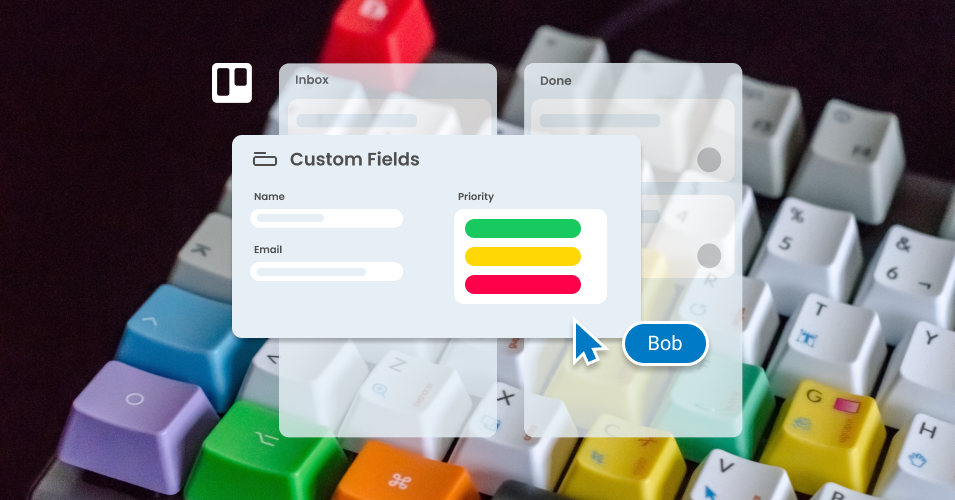
2. Add “just enough structure” with Custom Fields
Custom Fields are one of the best lightweight upgrades in Trello because they reduce repeat typing and make cards easier to sort. If you always find yourself opening cards to find the same information, that’s your cue to use custom fields.
Good lightweight field ideas:
Customer / company name
Status (dropdown)
Priority (dropdown)
Next follow-up date
Reference number (for a ticket, order, or invoice)
This gets really useful with email workflows in Trello
Fields help you keep the important details on the front of the card, instead of buried in a thread.
If you’re using Trello for customer outreach of any kind, email is usually part of the job. And if you’re using Email for Trello, those fields can also support faster, cleaner replies:
Use card info in email templates (with variables)
Keep replies consistent with Saved Replies
Make handoffs easy, because the card holds the context
3. Use pattern matching to get “smart” automation
This is one of the most powerful ways to customize Trello while keeping it lightweight. Pattern matching essentially tells Trello to do an action if it sees certain text.
That means you can do things like:
Spot a keyword in a card name
Detect a phrase in a comment
Pull a value out of text and use it in automation
This matters a lot if you manage work from email, because emails land on the card as comments. Using pattern matching gives Trello something real to react to and automate from.
💡 TIP Pattern matching works best when your team uses consistent formatting in email (saved replies can help to maintain this). Even something simple like “Order: 00345” can unlock a lot for pattern matching workflows.
4. Set up a few default automations that remove repeat work
Automation is the fastest way to make a board feel “custom,” because it removes repeated tasks and bothersome admin, freeing up headspace for more meaningful work.
In Trello, automations are built from a trigger and actions, and you can build them as rules, scheduled automations, due date automations, and buttons.
Here are a few lightweight defaults that fit almost any board:
When a card moves to “Waiting,” set a due date for 3 days out
When a card is marked done, move it to “Done”
When a card becomes urgent, add a label and move it to the top
Once a week, archive cards in “Done”
💡 TIP For more automation ideas, see our list of useful automation tricks.
5. Turn due dates into real actions (not just reminders)
Due dates are useful, but they’re even better as automation triggers! For example, with Email for Trello, you can pair Trello automation with emails so your team sends the right message at the right time, without relying on memory.
💡 TIP Recurring due dates are great for automated follow-ups. They keep your board clean because you’re not creating new cards for the same recurring customer check-in.
6. Make Trello feel like a shared inbox (without leaving the board)
If email is part of your workflow, one of the best “customizations” is bringing email into Trello.
That’s what Email for Trello is built for:
New emails become Trello cards
The full thread stays on the card
Anyone on the team can jump in
You can reply from Trello with a proper email editor
You can also reply fast with @reply in a comment
Saved Replies, signatures, and your own sending domain keep emails looking professional
You can merge threads when the same conversation gets split across cards
This is where your Trello board stops being just a tracker and starts being a working system your team can actually run from.
7. Build team-shaped boards
A common mistake is trying to make one board handle everything — but this leads to bloated boards with lots of general one-size-fits-all automations that end up fitting no one at all.
Instead, make boards match real team work:
Sales board
Support board
Ops board
Marketing board
Each one stays simple because it only supports one type of work, but you can still link multiple boards together, and use these tips to streamline handoffs between teams.
Simple customization in just 30 minutes
If you want the biggest impact with the least effort, we recommend doing this this:
Choose a label system your team will actually follow
Add 2–5 custom fields that will unlock automation potential
Add 2–3 automations that remove daily busy-work
If email is part of the job, bring it into the board with Email for Trello
You’ve just improved clarity, speed, and follow-through — in only 30 minutes!