Set up a hiring pipeline in Trello: turn applications into cards, track candidates by stage, and send interview and offer emails from saved templates.
Hiring without an applicant tracking system usually means a jobs@ inbox, a spreadsheet, and a lot of forwarding. Candidate emails get buried, two people reply to the same applicant, and nobody can see where anyone is in the process.
A Trello board fixes most of that, and once you connect your hiring inbox with Email for Trello, every application lands on the board as a card you can track, discuss, and reply to. Let’s look at how to build a recruitment pipeline, set up your candidate emails, and create email templates that handle repetitive replies.
Setting up a board as a hiring pipeline
Make a board called “Recruitment” or "Hiring" and add one list for each stage of your process. This set works for most small teams:
New applications: everything that's just come in
Screening: CVs you're reviewing
Interview: candidates you're meeting
Offer: people you want to hire
Hired: closed and accepted
Declined: not moving forward, archived for later
Candidates move left to right as they progress, so a glance at the board tells you how many people sit at each stage. Use labels to keep track of the role someone applied for, or to indicate where they came from (job board, referral, your careers page). If you're hiring for several roles at once, a label per role keeps them sortable on a single board.
Add a few Custom Fields for the details you check every time, like role, location, and source. Custom Fields can help to keep this data consistent from card to card.
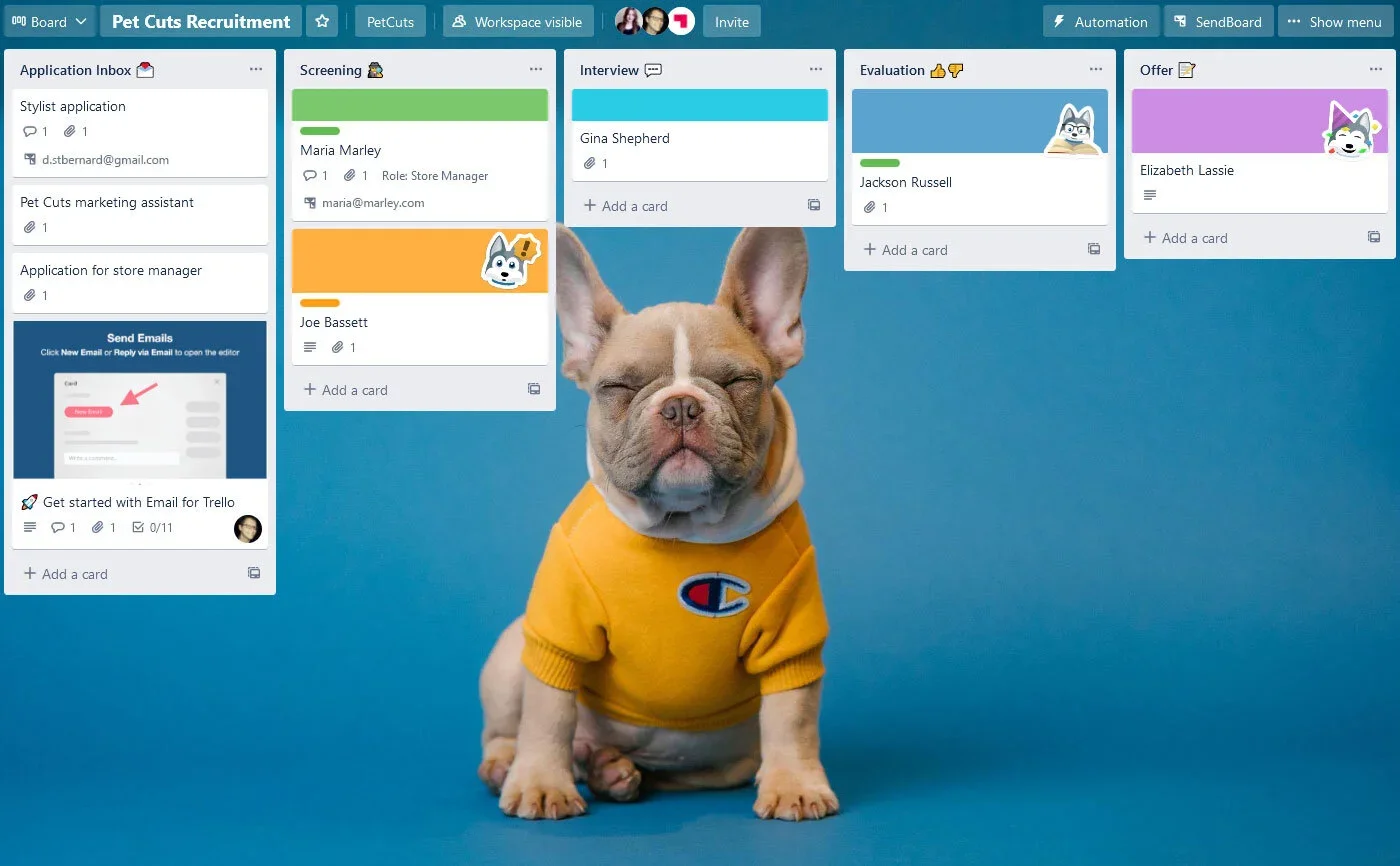
An example recruitment dashboard
Turn applications into cards
This is where Email for Trello does all the work. Connect a shared address like careers@ or jobs@ to your board, and every application that arrives becomes a card in your New applications list, with the candidate's message and CV attached. The whole hiring team sees it at the same time, so there's no forwarding and no guessing who's replying.
You can set an auto-reply to confirm you've received the application. A short "thanks, we've got your application and we'll be in touch" message reassures candidates and saves someone sending it by hand.
Keep everything about a candidate on one card
Because each candidate is on one card, the email thread, their CV, and your team's notes all live in the same place. Assign a hiring manager as a card member, add a checklist for your interview steps, and use comments for the private discussion candidates never see.
Contact management saves every applicant as a contact automatically, with their name and email, so you keep a record of who applied and when across every board in your workspace. We go deeper on this in our guide to improving recruitment with contact management in Trello.
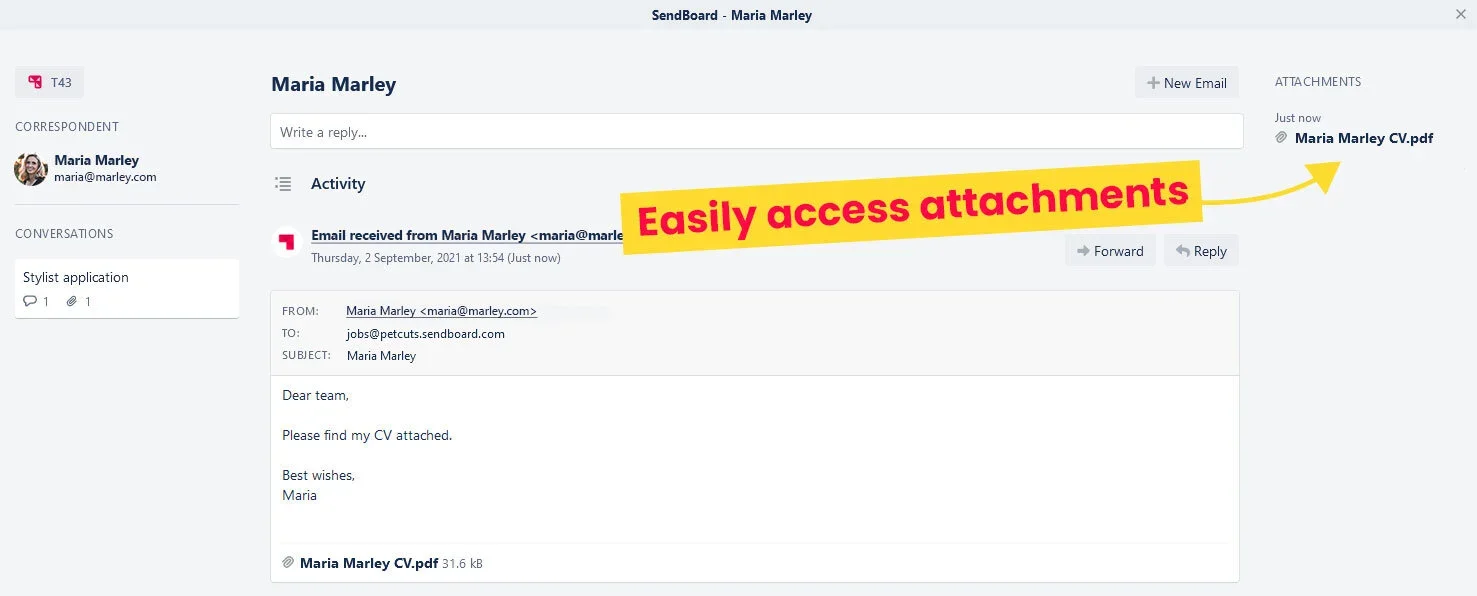
Email attachments (like CVs and cover letters) are automatically added as attachments
Let email templates do the heavy lifting
Most hiring emails are variations on the same few messages: acknowledging an application, inviting someone to interview, making an offer, and turning candidates down kindly. Saved Replies let you write each one once and reuse it, so the wording stays consistent whoever sends it. Saved Replies are a Pro feature.
A useful starter set:
Screening update: confirm you're reviewing the application and give a rough timeline.
Interview invitation: propose times and explain the format.
Offer: confirm the role, salary, and start date.
Rejection: thank the candidate and keep the door open for future roles.
Use variables so each template fills in the candidate's name, the role, and the interview date when you send it. Variables are an Essential feature, and they keep templates personal without manual editing. For ready-made wording to adapt, our 10 email templates for hiring and recruitment managers covers each of these stages.
💡 TIP Once you've written your hiring emails, you can save them as Saved Replies in Email for Trello so your whole team reuses the same wording.
Automate the stage emails once you're ready
If you'd rather not send each template by hand, Trello's automation (previously called Butler automation) can do it for you. Move a card into "Interview" and automatically send the interview Saved Reply; move it to "Declined" and have it send the rejection.
Our guide to becoming an HR and recruitment pro in Trello has more automation ideas once the basics are in place.
A pipeline your whole team can see
A Trello board, a connected inbox, and four or five templates cover most of what a small team needs to hire well, without paying for an ATS you'll half use. Build the board, route your careers address to it, and write your first two templates before the next role goes live. Our HR and recruitment use case walks through how hiring teams put these pieces together.
If you don't have it on your board yet, you can try Email for Trello free for fourteen days and start by pulling your applications into Trello.